Contact Us
Get a Quote
Print-Ready Guidelines.
Print-Ready Guidelines.
Standard PDFs are not print-ready. They may have poor quality images and colors, which may not print as intended or print at a very low quality. Most modern software packages can create a high-resolution print-ready PDF.
PDF checklist:
Check the bleed around all edges and check for crop marks.
Check that images don't look overly pixelated onscreen, resolution of 300 dpi or higher is best.
This one’s so important! proof read it before sending to print.
Select the File Format
Quality beats speed when it comes to choosing the best file format for your print ready PDF. Rather than picking the fastest file format, you’ll want the file formats that have the highest quality. Know that file formats all compress information differently. Select 'High Quality Print' or similar to achieve quality.
Pick High Resolution
One of the most important steps you can take to prepare your PDF is to ensure that your images are crystal clear. You want high resolution, which is a function of how much data is in the digital image. For print, images should be at least 300 PPI (pixels per inch).
Add Crop Marks
Crop marks are two perpendicular tick marks at each corner of a printed piece, and they instruct the printer where the final trim size ends. Professional printers print on oversized paper with bleeds, these tick marks show the printer exactly where to make the cuts.
Add Bleed (3mm)
Printers use bleed to create a seamless look, with the image or background printing right to (and through) the edge of the paper. This is difficult to achieve by printing on the exact size paper, as you may have noticed with smaller office printers, the printer will leave a border untouched since it cannot print right up to the edge.
So to achieve a continuous background, professionals print the image beyond the final desired size and then cut back to that desired size.
Standard PDFs are not print-ready. They may have poor quality images and colors, which may not print as intended or print at a very low quality. Most modern software packages can create a high-resolution print-ready PDF.
PDF checklist:
Check the bleed around all edges and check for crop marks.
Check that images don't look overly pixelated onscreen, resolution of 300 dpi or higher is best.
This one’s so important! proof read it before sending to print.
Select the File Format
Quality beats speed when it comes to choosing the best file format for your print ready PDF. Rather than picking the fastest file format, you’ll want the file formats that have the highest quality. Know that file formats all compress information differently. Select 'High Quality Print' or similar to achieve quality.
Pick High Resolution
One of the most important steps you can take to prepare your PDF is to ensure that your images are crystal clear. You want high resolution, which is a function of how much data is in the digital image. For print, images should be at least 300 PPI (pixels per inch).
Add Crop Marks
Crop marks are two perpendicular tick marks at each corner of a printed piece, and they instruct the printer where the final trim size ends. Professional printers print on oversized paper with bleeds, these tick marks show the printer exactly where to make the cuts.
Add Bleed (3mm)
Printers use bleed to create a seamless look, with the image or background printing right to (and through) the edge of the paper. This is difficult to achieve by printing on the exact size paper, as you may have noticed with smaller office printers, the printer will leave a border untouched since it cannot print right up to the edge.
So to achieve a continuous background, professionals print the image beyond the final desired size and then cut back to that desired size.
Bleed & resolution.
Bleed & resolution.
Add 3mm bleed and use at least 300 DPI. This prevents trimming issues and blurry prints.
Add 3mm bleed and use at least 300 DPI. This prevents trimming issues and blurry prints.

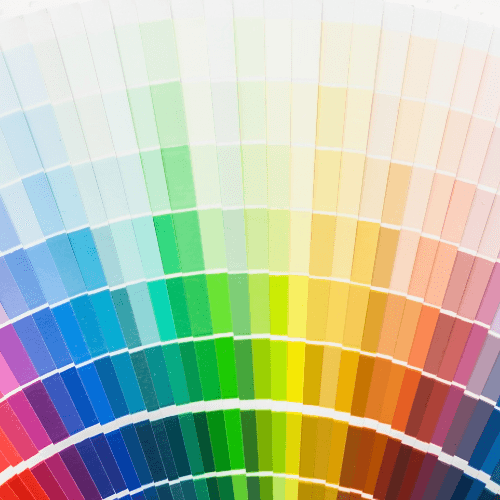
Colour mode & images.
Colour mode & images.
Only use high-resolution images; avoid stock previews. Preserve native color space, leave RGB images as RGB and provide Pantone colors as a spot color
Only use high-resolution images; avoid stock previews. Preserve native color space, leave RGB images as RGB and provide Pantone colors as a spot color
Fonts & file formats.
Fonts & file formats.
We highly recommend sending us a PDF (Portable Document Format) is a highly versatile and widely used file format for documents that preserves their original appearance and formatting across different devices and platforms.
We highly recommend sending us a PDF (Portable Document Format) is a highly versatile and widely used file format for documents that preserves their original appearance and formatting across different devices and platforms.
+61 8 8331 8713
sales@printmatters.com.au
182 Magill Rd, Norwood SA 5067
+61 8 8331 8713
sales@printmatters.com.au
182 Magill Rd, Norwood SA 5067
+61 8 8331 8713
sales@printmatters.com.au
182 Magill Rd, Norwood SA 5067